
Create your own Gangnam Style AI video by uploading photos of yourself, your friends, or even your pets. Choose a video template, assign each person to their position, and let our cloud-based AI turn your photos into a three-person singing performance with music.
Follow this step-by-step guide to create, preview, and download your video.
Step 1 – Choose a Gangnam Style AI Video Template
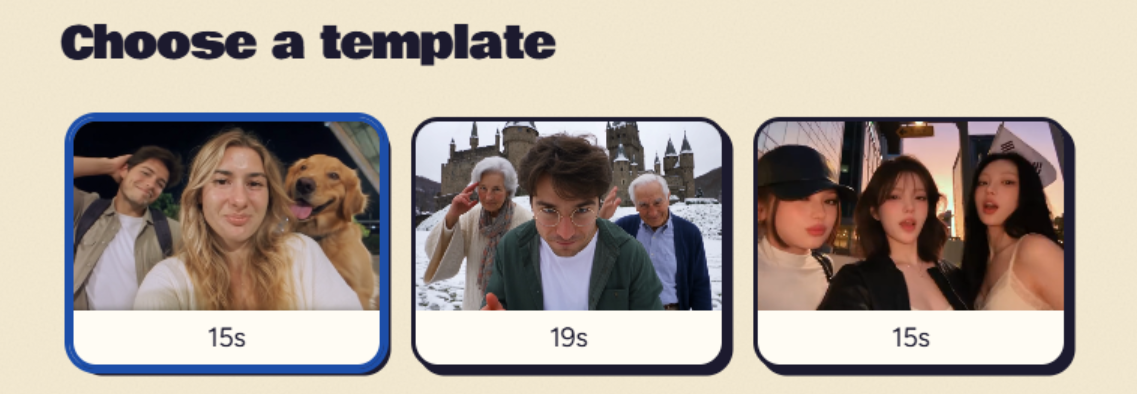
Start by selecting a Gangnam Style AI video template from the available options.
Each template displays a preview image and its video duration. Click on a template to select it, and check the reference video to see the characters' positions, camera movements, and performance style.
Different templates feature different scenes and durations, so choose the one that matches the video you want to create.
Step 2 – Upload Your Photos
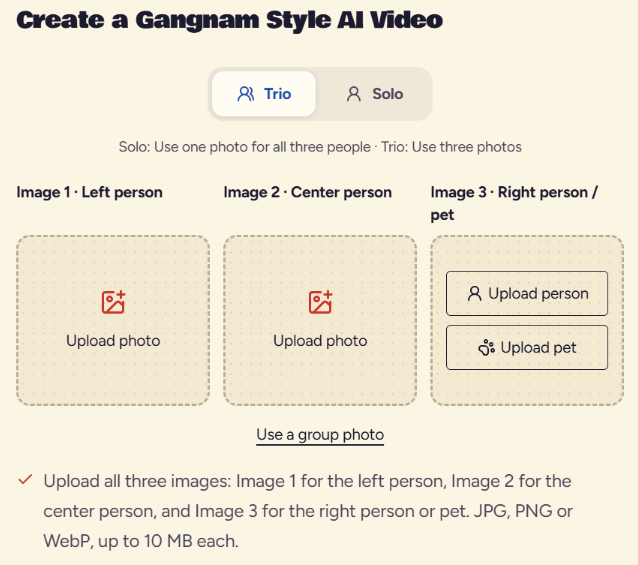
After choosing a template, upload the photos you want to use in your Gangnam Style AI video.
You can choose between two modes:
- Trio Mode: Upload three individual photos, one for each performer.
- Solo Mode: Upload one photo to place the same person in all three positions.
For Trio Mode, assign your photos according to their positions in the final video:
| Upload position | Video position |
|---|---|
| Image 1 – Left person | Left side of the screen |
| Image 2 – Center person | Center of the screen |
| Image 3 – Right person / pet | Right side of the screen |
The left and right positions refer to what you see on the screen, not the person's own left or right.
Want to include your pet?
Select Upload pet in the rightmost photo slot. Gangnam Style AI supports dogs and cats in this position. You can check the pet video examples on our homepage to see the generated results.
For the best facial consistency, use clear photos with visible faces. Supported formats are JPG, PNG, and WebP, with a maximum file size of 10 MB per image.
Alternative: Upload a Group Photo
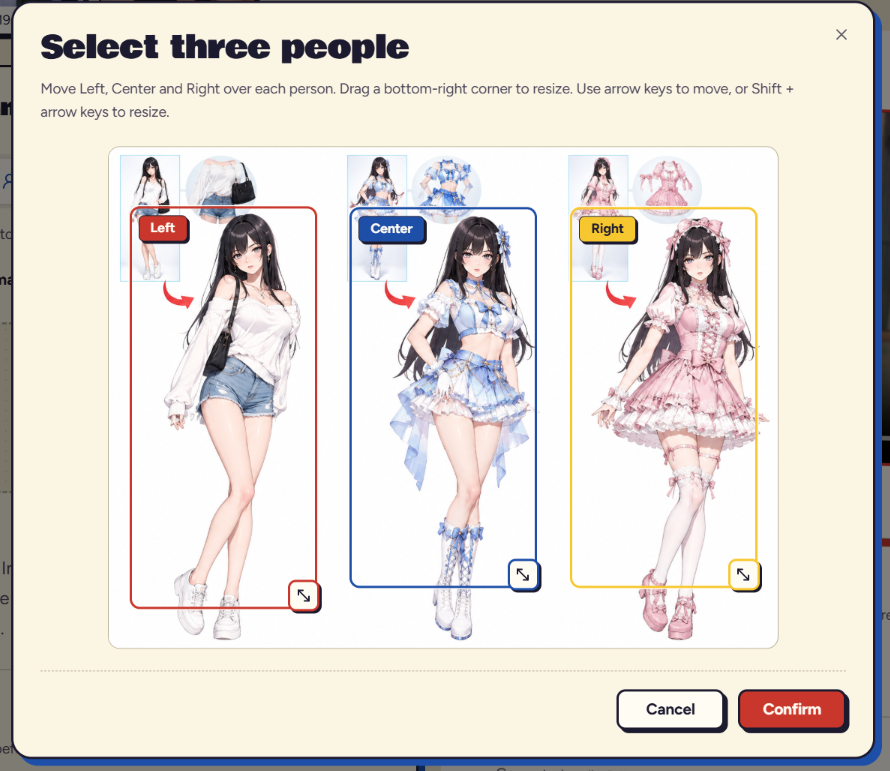
If you don't have three separate portraits, click Use a group photo.
Upload a group picture, then select the three people you want to include. Move and resize the selection boxes labeled Left, Center, and Right to match each person in the photo.
Once all three people are selected, click Confirm. The selected characters will be assigned to their corresponding positions in the generated video.
For better results, we recommend using separate, clear portraits whenever they are available.
Step 3 – Select Video Quality and Generate
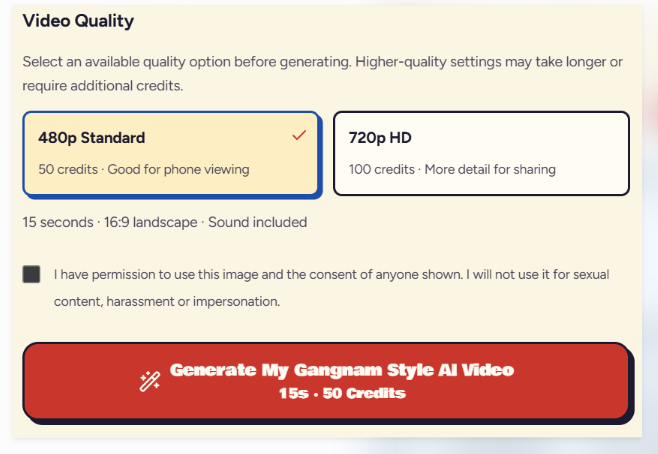
Before generating your Gangnam Style AI video, choose your preferred video resolution.
| Video quality | Credit cost |
|---|---|
| 480p Standard | 50 credits |
| 720p HD | 100 credits |
The 720p option costs twice as many credits as 480p and provides higher video resolution.
Your video includes sound and uses a 16:9 landscape format. The final duration depends on the selected template.
Next, check the confirmation box to confirm that you have permission to use the uploaded images and the consent of the people shown.
Click Generate My Gangnam Style AI Video to start creating your video.
Step 4 – Wait for Your Video to Finish Generating
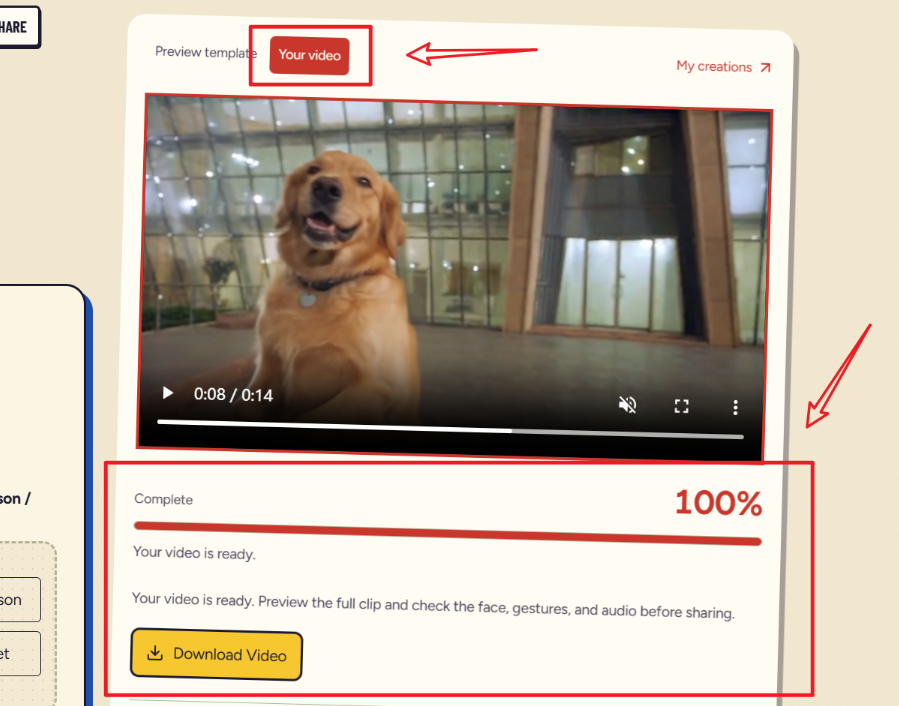
Once you start generating, the right-side panel displays your Gangnam Style AI video generation progress.
To improve character consistency, our system performs additional face recognition and precise image processing. The generated video also undergoes further processing to improve the final result.
The entire generation process takes approximately 5–10 minutes.
When the progress reaches 100%, the status changes to Complete, and your finished video appears in the Your video tab.
Step 5 – Preview and Download Your Video
After your Gangnam Style AI video finishes generating, open the Your video tab to watch the result.
Play the full video and check the characters' faces, singing gestures, camera movements, and audio.
Once you're satisfied with the result, click Download Video to save the completed video to your device.
You can then share your creation with friends, send it to a group chat, or upload it to social media.
Step 6 – Find Your Previous Creations
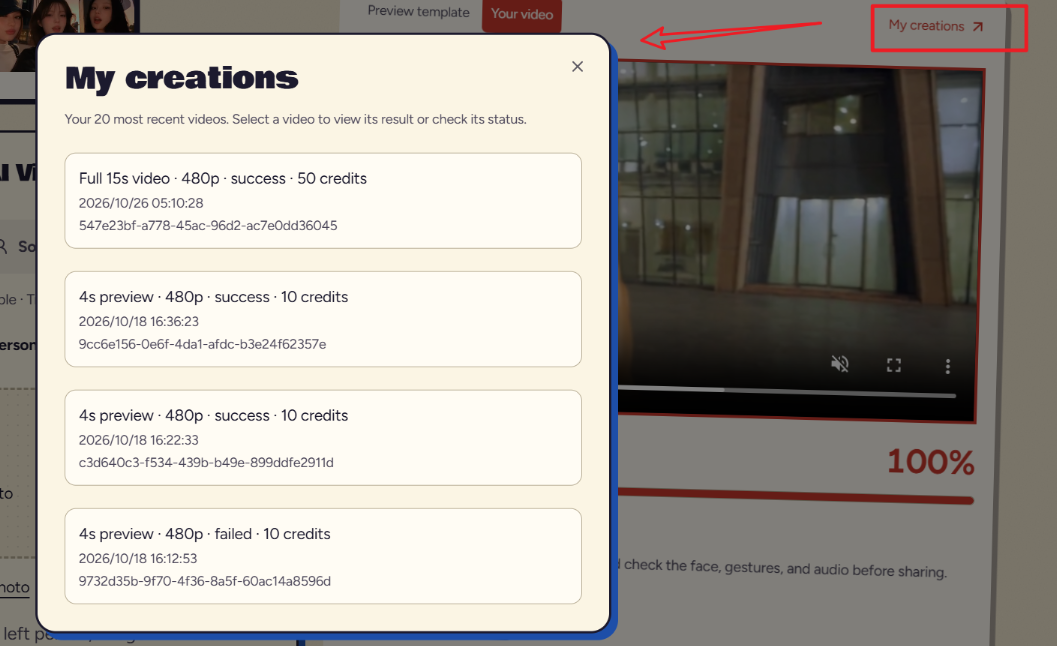
You can access your previous Gangnam Style AI generations through My creations, located in the upper-right corner of the video preview area.
Click My creations to open your recent video history.
The panel displays your 20 most recent videos, including their generation status, resolution, credit usage, and creation time.
Select any video from the list to view its result or check its current status. This also helps you return to previous creations without starting a new generation.
Common Problems and Fixes
1. The Generated Faces Don't Look Like the Original Photos
Gangnam Style AI uses additional face recognition and processing to improve identity consistency. However, fast movements and camera transitions can still introduce facial imperfections.
For better results, use well-lit photos with clear facial features. If your original image only shows the face, try replacing it with an upper-body portrait that includes more clothing and body details.
2. The Characters Appear in the Wrong Positions
Each photo is assigned to a specific position: Left, Center, or Right.
If the characters appear in the wrong positions, check the photo assignments before starting a new generation.
When using a group photo, make sure the selection boxes are placed over the correct people and confirm the assignments.
3. My Gangnam Style AI Video Generation Failed
If your Gangnam Style AI video fails to generate, the failed attempt will not consume your credits.
Open My creations to check the generation status and identify the failed task.
Create Your Gangnam Style AI Video
Turn your photos into a fun singing trio. Upload, generate, and share!
Create Your Video